Clocks User Guide
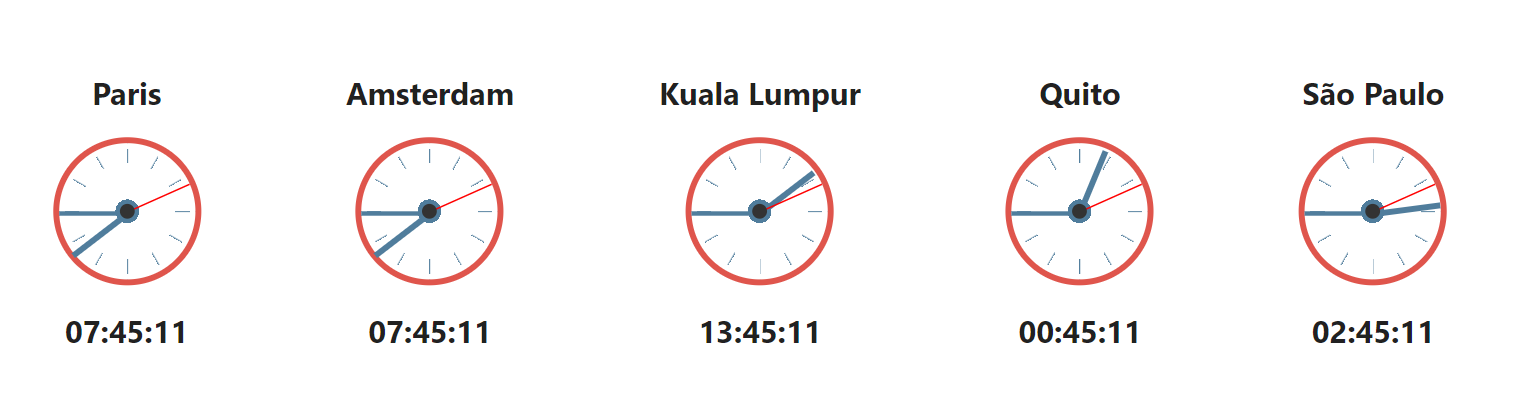
The Clocks widget allows you to display clocks showing the current time in different time zones. Users can choose to display between 1 and 5 time zones, making it easy to keep track of global operations right from your page.
Available in EN.
Prerequisites
Users: Global administrators.
Package: Professional + Marketplace add-on, or Enterprise.
Install the extension
In the Extensions library, you must click Install to configure and use the selected
extension. You can search for the selected extension by name or description in the
Search field. When your extension is installed, the Install button changes to Already
installed.
When extensions require an update, you must click Update to update your
extension.

Activate the extension
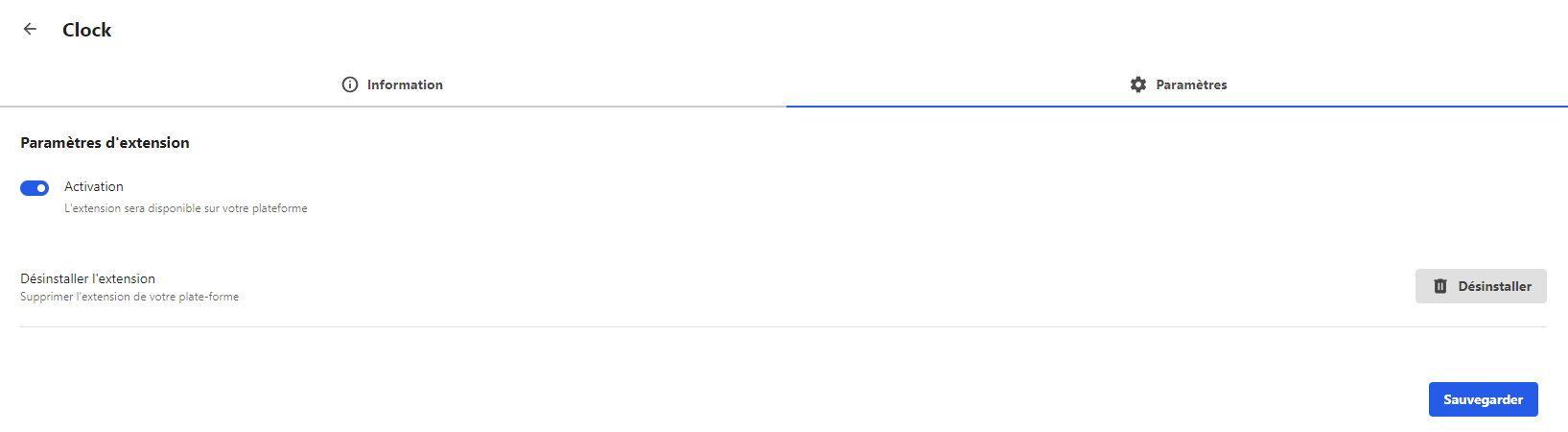
The last step is to make sure the extension is activated. To activate the extension, go
to the Installed extensions section of the back office and take a look at the Activation
status column. You can easily see which extensions are currently activated or
deactivated.
If the extension is deactivated, you must click the Details button
facing the extension to open the configuration modal.
All our widgets are available for free with full functionality for a period of 30 days. After this trial period, a license is required to continue using the widget. To obtain a license, please contact us at contact@wedocom.io.
Prerequisites
Users: users with a Create & Edit role on the content type.
Settings
All configuration settings for the widget are accessible from the extension's configuration on the content
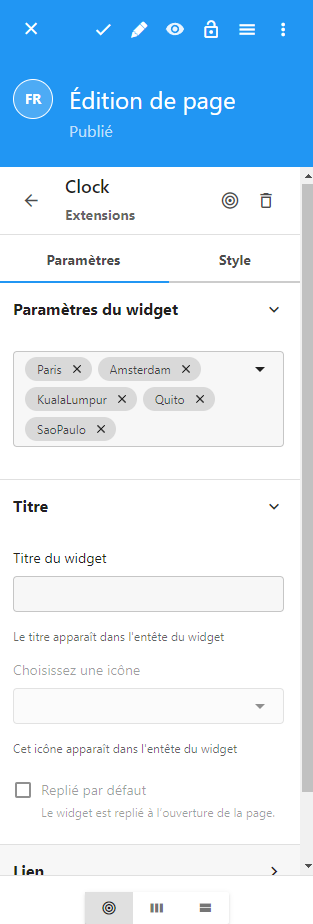
All you need is to choose up to five city to display the corresponding clocks.
Using the Clocks Widget on LumApps: Once the clocks widget is installed and configured, you can add it to any page on LumApps. The widget allows users to select and display up to 5 time zones, making it easy to keep track of different locations around the world.
After adding the widget to a page, users can easily view the current time in the selected cities, helping them stay informed about the time in key locations relevant to their work.
Use Cases examples
The clocks widget is a practical tool that can enhance your company's intranet by providing real-time information on various time zones. Here are some creative ways to utilize the clocks widget within your organization:
- Global Team Collaboration
Display the current time in different offices around the world, making it easier for teams to coordinate meetings and collaborate across time zones.
- Client or Partner Locations
Show the time in cities where your important clients or partners are located. This helps in planning communication and understanding when it's best to reach out.
- Event Planning Across Time Zones
If your company hosts events or webinars for international audiences, use the widget to display the time in different regions, helping participants know when to join.
- Shift Management
For organizations with shift workers in different parts of the world, the clocks widget can display the time in various regions, aiding in shift planning and management.
- Monitoring International Markets
For businesses involved in international trade or finance, keep an eye on the opening and closing times of stock exchanges or other markets by displaying the relevant time zones.
By integrating the clocks widget into your intranet, you can provide a simple yet effective way for employees to stay connected to global time zones, enhancing coordination and productivity across your organization.
Frequently Asked Questions
How can I get support for this widget?
For any support, you can contact support@wedocom.io or visit our tool to create your
ticket.
Our teams will strive to respond as quickly as possible.
Can I suggest improvement ideas for this widget?
All ideas are welcome, so feel free to contact contact@wedocom.io
Is it possible to have this widget in a customized version?
We can certainly customize the card to your liking by adding information to the markers or other elements. Feel free to contact contact@wedocom.io
How do I add the clocks widget to my LumApps page?
To add the clocks widget, navigate to the desired page on LumApps, and select the option to add a widget. Choose the clocks widget from the list, and then configure the settings to select up to 5 cities you want to display.
How many time zones can I display at once?
The clocks widget allows you to display up to 5 time zones at a time.
Can I customize the appearance of the clocks?
The clocks widget currently offers a standard design. However, you can customize the selected cities to best suit your needs.
How do I change the cities displayed on the clocks?
To change the cities, go to the widget settings on your LumApps page. From there, you can select or deselect cities to be displayed.
Is the clocks widget available in different languages?
Yes, the clocks widget supports multiple languages based on your LumApps platform's language settings.
Can I use the clocks widget on multiple pages?
Yes, you can add the clocks widget to as many pages as you like within your LumApps environment.
Is the time automatically updated?
Yes, the clocks widget automatically updates the time in real-time for each of the selected time zones.
Can I display custom time zones that are not linked to a specific city?
Currently, the clocks widget allows you to select from a predefined list of cities representing different time zones.
What happens if Daylight Saving Time (DST) changes?
The clocks widget automatically adjusts for Daylight Saving Time changes based on the selected cities.
Do I need any special permissions to add or configure the clocks widget?
You will need the appropriate permissions to add and configure widgets on your LumApps page, typically granted by your site administrator.