Job offers User Guide
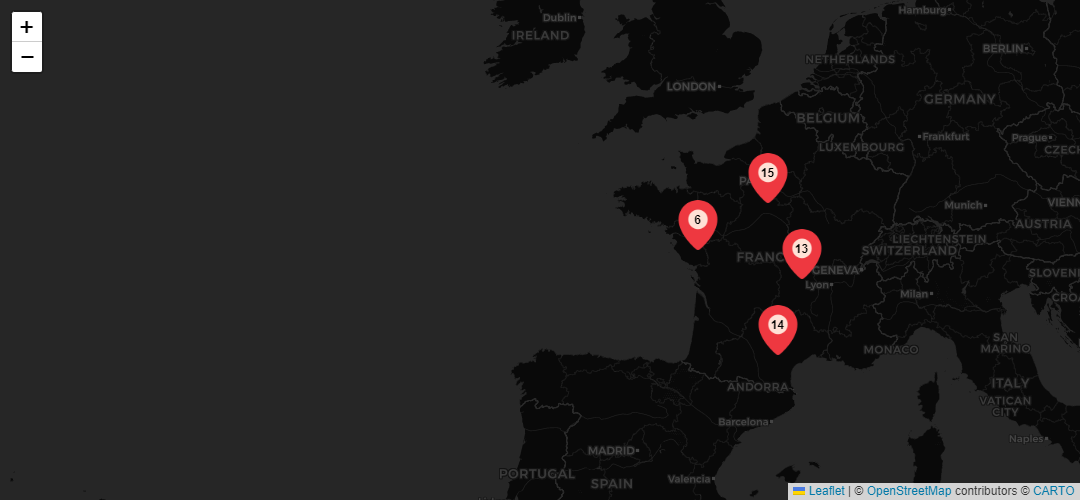
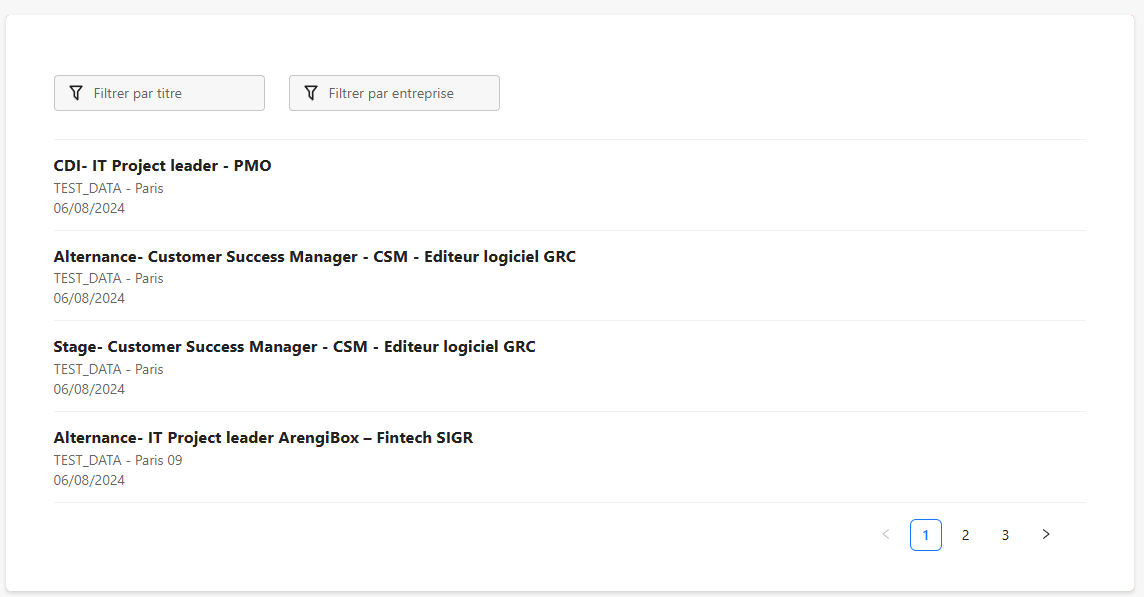
The Job Listings widget for LumApps enables users to display a curated list of open job opportunities within their company directly on the platform. Administrators can configure the widget to pull job postings from multiple sources, including LinkedIn, Layan, and JobUp. This versatile tool ensures employees have easy access to current openings, making internal hiring and information sharing seamless and efficient.
Available in FR/EN/DE/IT.
Prerequisites
Users: Global administrators.
Package: Professional + Marketplace add-on, or Enterprise.
Install the extension
In the Extensions library, you must click Install to configure and use the selected
extension. You can search for the selected extension by name or description in the
Search field. When your extension is installed, the Install button changes to Already
installed.
When extensions require an update, you must click Update to update your
extension.

Activate the extension
The last step is to make sure the extension is activated. To activate the extension, go
to the Installed extensions section of the back office and take a look at the Activation
status column. You can easily see which extensions are currently activated or
deactivated.
If the extension is deactivated, you must click the Details button
facing the extension to open the configuration modal.

All our widgets are available for free with full functionality for a period of 30 days. After this trial period, a license is required to continue using the widget. To obtain a license, please contact us at contact@wedocom.io.
Prerequisites
Users: Global administrators.
Settings
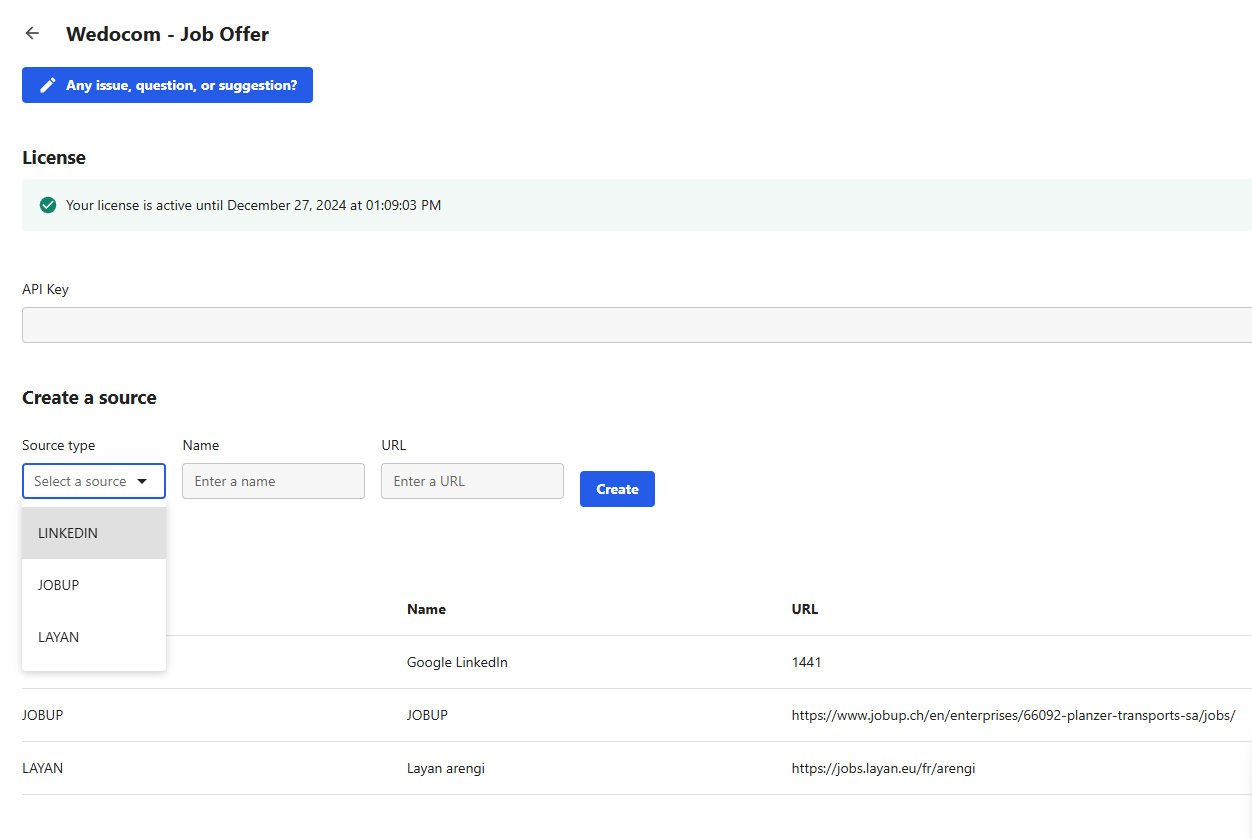
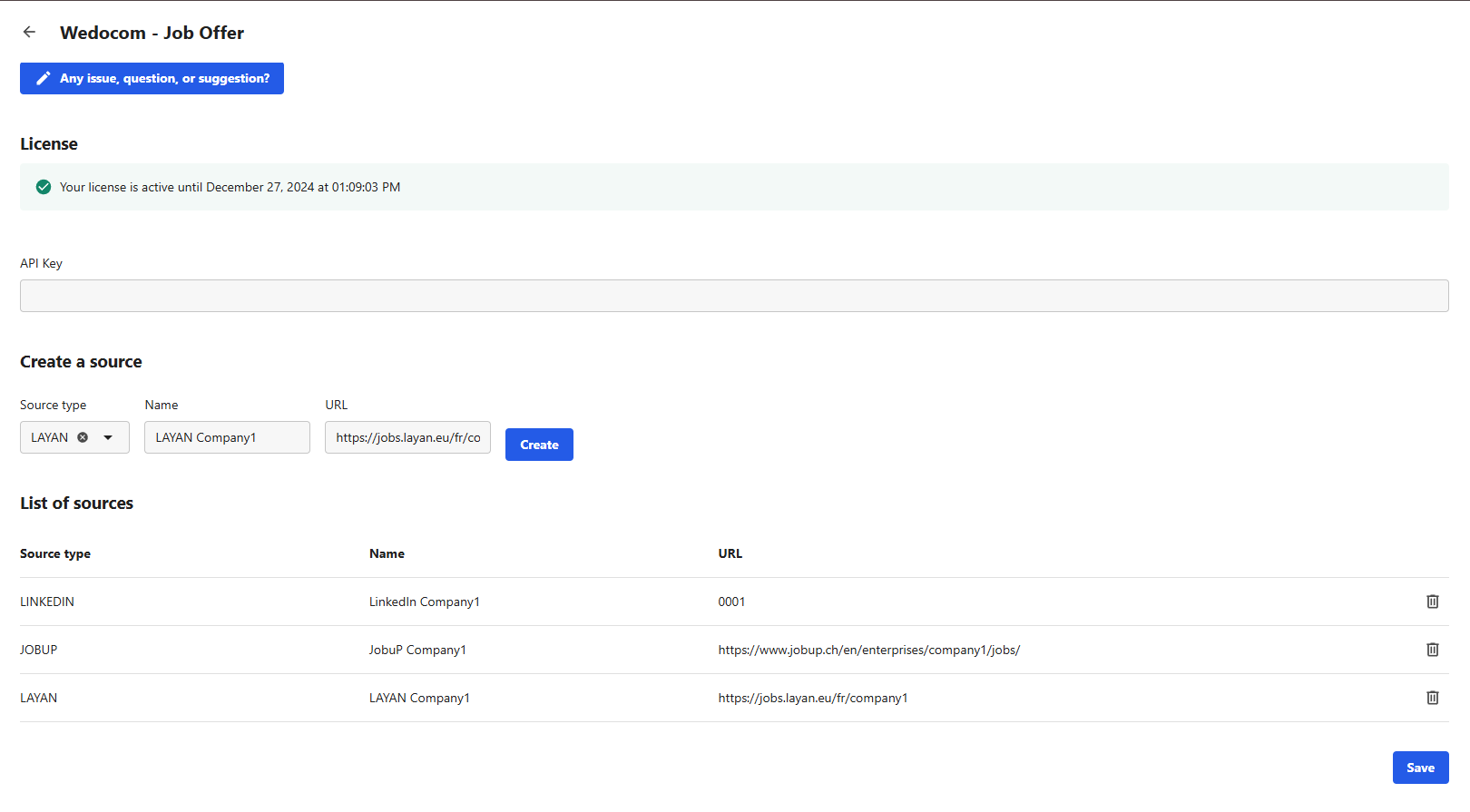
This section allows administrators to configure the sources from which job offers will be displayed in the widget. The available sources include LinkedIn, Layan, and JobUp. Additionally, administrators can enter the license provided by Wedocom to ensure the widget remains active beyond the 30-day trial period.
Job Offer Sources Configuration
Here, you can set up the different sources of job offers. You need to provide a name for each source, along with the necessary information:
| Source | Required Information |
|---|---|
| Company ID (to pull job offers from your company's LinkedIn page) | |
| Layan | URL (the link to your Layan job listings) |
| JobUp | URL (the link to your JobUp job listings) |
License Configuration
To continue using the widget beyond the 30-day trial, the administrator must enter the license number provided by Wedocom. Enter the license in the corresponding field to activate all features and ensure the widget remains functional.
- Source Name
Give a name to each job offer source for easy identification. You can name each source according to the platform or any other identifier of your choice.
- LinkedIn
Enter the Company ID to connect the widget to your LinkedIn job listings. This ID is required to fetch job offers from your company's LinkedIn page.
- Layan / JobUp
Enter the URL to your job listings page on Layan or JobUp. These URLs allow the widget to retrieve available job offers from these platforms.
- License
Enter the license number provided by Wedocom to keep the widget active. Without a valid license, the widget will be limited to a 30-day trial period with reduced functionality.
Important: Remember to save your changes. If you don’t save, your configurations won’t be applied. Also, changes may not be visible immediately due to caching. It might take up to 24 hours for updates to appear or you can clear your browser’s local storage to see the changes right away.
Prerequisites
Users: Global administrators, site administrators, and users with a Create & Edit role on the content type.
Settings
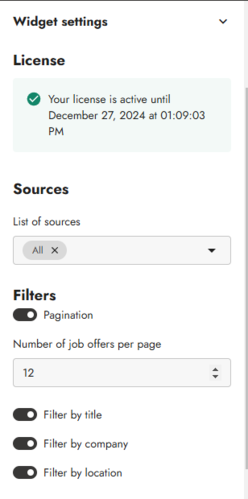
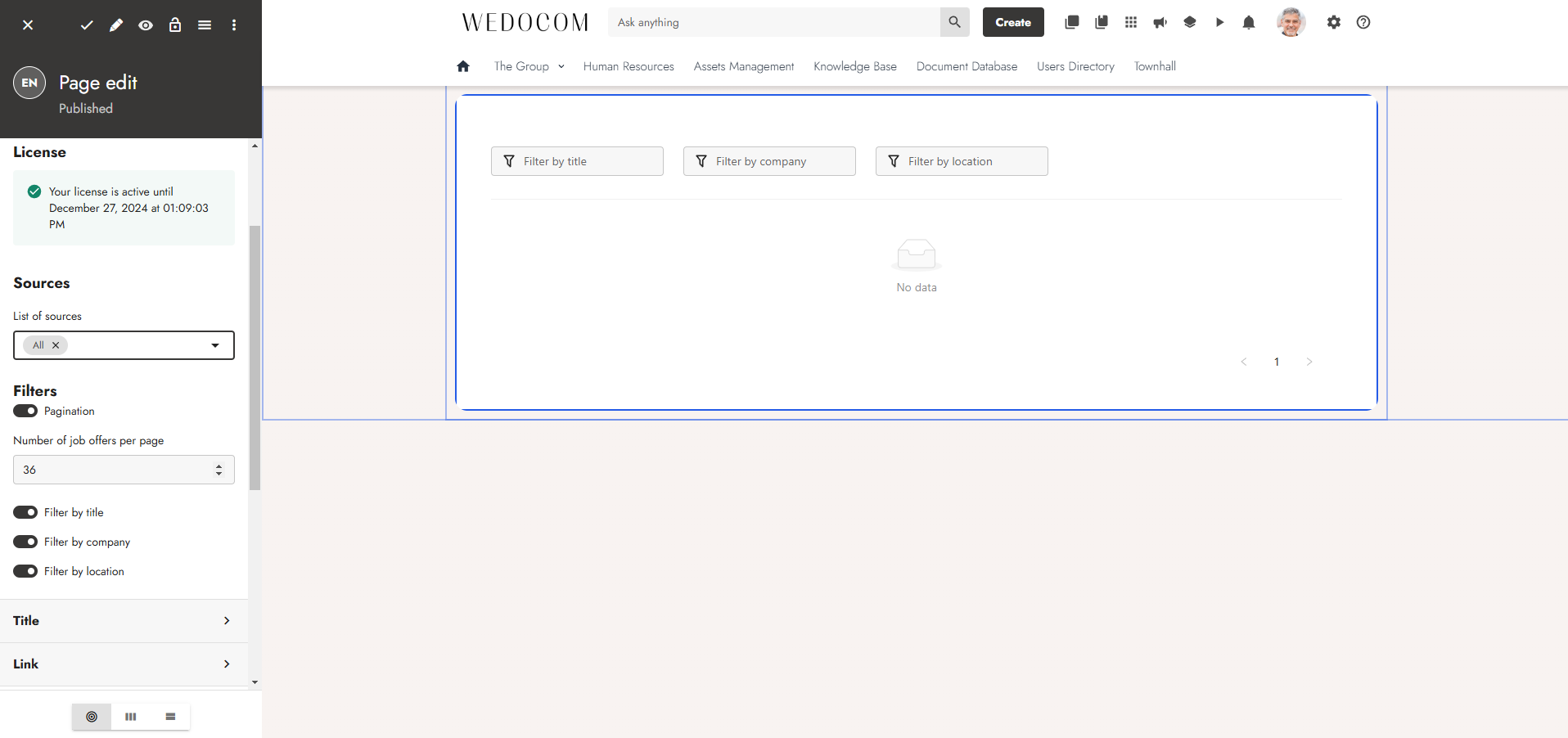
This section allows administrators to configure the job offer widget for each page where it is displayed. The configuration can vary depending on the page. The settings available for this configuration include the following:
Job Offer Sources
Choose which job offer sources to display on this page. You can select one, multiple, or all of the sources that were configured in the previous step.
Pagination
You can choose whether to enable pagination for the job offers. If enabled, you can define the number of offers to display per page. This option allows you to display a smaller widget with just a few job offers or a larger widget that shows all available offers on a single page.
Filters
Enable filters for the job offers on this page. You can apply filters based on the company, job title, or location. This allows users to quickly find job offers that meet specific criteria.
Important:
Remember to save your changes. Any changes made in this configuration section will apply only to the page where the widget is placed. If you do not save your settings, they will not be applied to the widget on the page.
Frequently Asked Questions
How can I get support for this widget?
For any support, you can contact support@wedocom.io or visit our support portal to create
a ticket.
Our teams will strive to respond as quickly as possible.
Can I suggest improvement ideas for this widget?
We welcome all ideas! Feel free to contact contact@wedocom.io with your suggestions.
Is it possible to have this widget in a customized version?
Yes, we can certainly customize the job offer widget according to your needs, such as adding specific filters or modifying its appearance. Contact contact@wedocom.io for more information.
What is the Job Offers Widget?
The Job Offers Widget is a tool designed to display job listings from various sources directly within your LumApps platform. It allows you to configure the widget to show offers from LinkedIn, Layan, or JobUp based on your preferences.
How do I install the Job Offers Widget?
To install the Job Offers Widget, follow the installation instructions provided with the widget package. Once installed, you can configure it and add it to any page in LumApps where you wish to display job offers.
How do I configure the Job Offers Widget?
Configuration options include selecting one or more job offer sources, enabling pagination, and activating filters for company, title, or location. These settings can be customized for each page where the widget is placed.
Can I configure filters for the job offers?
Yes, you can enable filters for company, title, or location. This feature allows users to narrow down job offers based on specific criteria.
Can I customize the number of job offers displayed?
Yes, you can choose to enable pagination and specify how many job offers are displayed per page. This option helps you control the size of the widget and manage the display of job offers more efficiently.
How do I keep the widget active after the 30-day trial?
To continue using the widget after the 30-day trial, you must contact contact@wedocom.io to obtain a license key. Enter this license key in the widget configuration to keep it active.
Why are job offers not appearing immediately after publication?
Job offers are synchronized every 24 hours, so it may take up to a full day for new offers to appear in the widget. Please be patient if you do not see the latest job postings right away.