User List User Guide
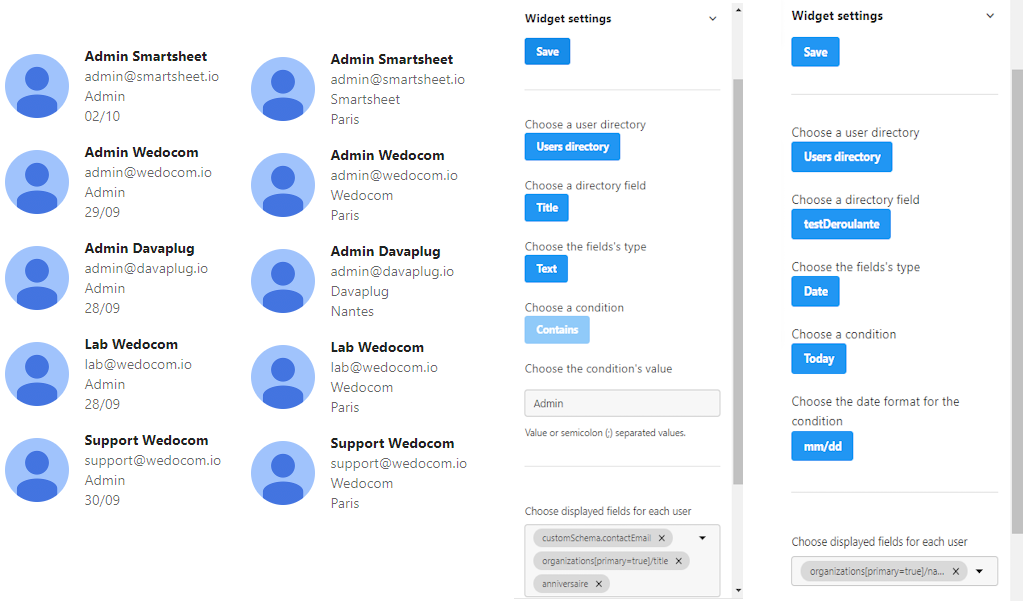
The User List widget enables you to display a customized list of users filtered by specific profile fields from any LumApps user directory. Choose criteria like text, number, or date fields—such as all employees whose "company" field contains "France" or colleagues with birthdays within the next 9 days—making it easy to spotlight and connect with the right people directly from your page.
Available in EN, FR, DE, IT, ES.
Prerequisites
Users: Global administrators.
Package: Professional + Marketplace add-on, or Enterprise.
Install the extension
In the Extensions library, you must click Install to configure and use the selected
extension. You can search for the selected extension by name or description in the
Search field. When your extension is installed, the Install button changes to Already
installed.
When extensions require an update, you must click Update to update your
extension.

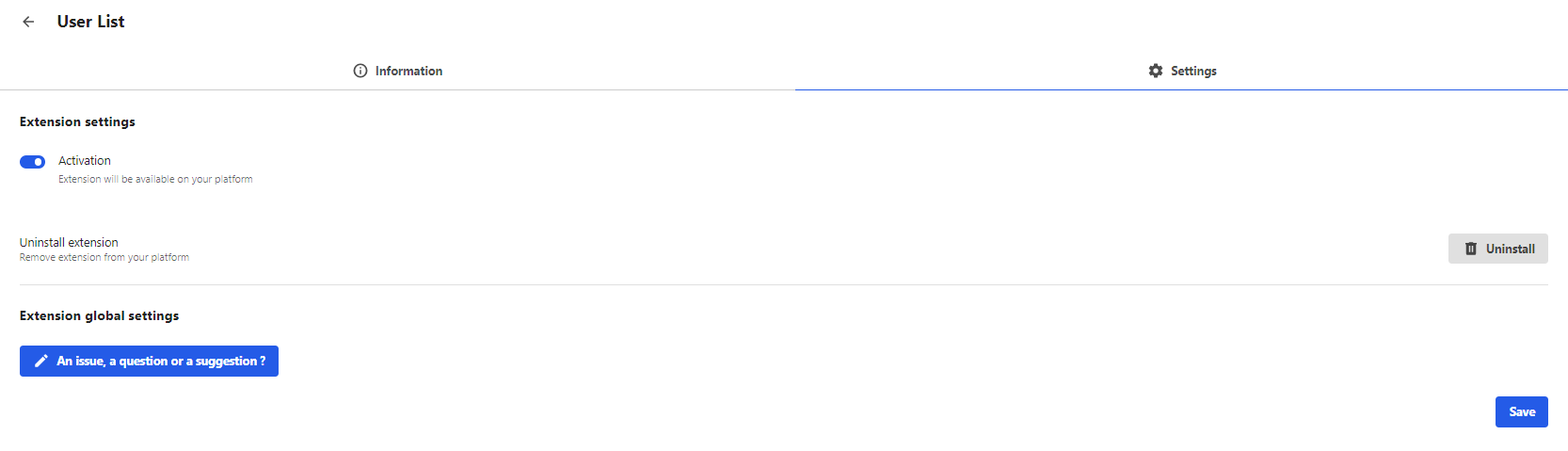
Activate the extension
The last step is to make sure the extension is activated. To activate the extension, go
to the Installed extensions section of the back office and take a look at the Activation
status column. You can easily see which extensions are currently activated or
deactivated.
If the extension is deactivated, you must click the Details button
facing the extension to open the configuration modal.
All our widgets are available for free with full functionality for a period of 30 days. After this trial period, a license is required to continue using the widget. To obtain a license, please contact us at contact@wedocom.io.
Prerequisites
Users: users with a Create & Edit role on the content type.
Settings
All configuration settings for the widget are accessible from the extension's configuration on the content
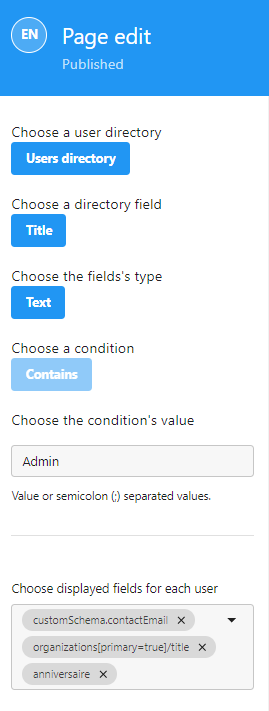
Here's a breakdown of the various settings :
Choose a user directory
List all available user directory
Choose directory field
List all available fields for a given directory
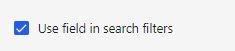
Only fields that are set as 'usable in search filters', on the selected directory, are available
Choose the field's type
You can select the type (text, number or date) of the directory's field you want to target. This will be used to determine how to apply the condition.
Choose a condition
You can select a condition's type depending on the field's type
For types "number" and "text" the only condition is "Contains"
For type "date" you can choose "Equals", "Today" or "Time Span"
-
Contains (Number & Text)
This condition will match strings that contains the given value (for exemple "Agent" will match "User Agent" and "Special Agent")
-
Equals (Date)
This condition will match a string representing a date (for exemple 01/02/24)
Partial date (mm/dd) will match that day for any year (mm/dd/yyyy)
-
Today (Date)
This condition will match fields containing today's date (with a given format)
-
Time span (Date)
This condition will match fields containing a date between today and plus or minus X days (limited to +9 or -9)
For exemple if we're monday, September 30th and the condition is set to Time span -5 days, then all dates between 09/30/24 and 09/25/24 would be included in the search.
Choose date format (if type = date only)
You can select the date format with which the targeted field is formatted
Choose date format (if type = date only)
You can select the date format with which the targeted field is formatted
Choose the condition's value
You can write here your condition's value. Note that for Text contains and Number contains conditions you can use multiple values (up to 10), separated with (;). For exemple : "Agent;Officer;Support"
Choose displayed fields for each user
You can select multiple fields to be displayed under each user in the widget. Thoose fields are the ones available on the selected directory.
Using the User List Widget on LumApps: Once the User List Widget is installed and configured, you can add it to any page on LumApps. This widget allows users to display a list of users filtered based on profile fields, offering advanced customization and flexibility.
The User List Widget provides more robust filtering options than LumApps' native user list, which can only be filtered by basic attributes like name, email, or join date. With the User List Widget, you can filter users based on any field from any directory, with advanced filter options.
Filtering Options
The widget supports several filtering options, allowing you to refine the user list based on multiple criteria. Filters can be applied based on:
- Field Type
Select from text, number, or date fields to filter users. The field type determines the available filtering conditions.
- Condition Types
Choose a condition to apply to the selected field, such as:
- Text Fields: Filter based on whether the field contains a specific value.
- Number Fields: Filter based on numerical ranges.
- Date Fields: Filter by date range, such as "between X and Y dates".
Profile Field Selection: The widget also allows you to select which profile fields are displayed under the users returned by the widget. This is a major advantage over the default LumApps user list, which does not allow such customization.
Use Case Examples
The flexibility of the User List Widget opens up numerous use cases within your organization. Here are a few examples:
- Display Users with Upcoming Birthdays
Filter users based on a custom profile field that stores their birthday date, allowing you to show only users whose birthdays are today or within a specified range.
- List of Recent Hires
Use the widget to display a list of new employees by filtering users based on their start date, offering a real-time view of recent arrivals within the company.
- Users by Department or Geographical Area
Filter the user list based on fields such as department, subsidiary, or geographical region, making it easy to display employees in specific business units or locations.
Note: There is no free version of this widget available.
Frequently Asked Questions
How can I get support for this widget?
For any support, you can contact support@wedocom.io or visit our tool to create your ticket.
Our teams will strive to respond as quickly as possible.
Can I suggest improvement ideas for this widget?
All ideas are welcome, so feel free to contact contact@wedocom.io
Is it possible to have this widget in a customized version?
We can certainly customize the widget to suit your needs by adding new filters or display options. Feel free to contact contact@wedocom.io
How do I add the User List Widget to my LumApps page?
To add the User List Widget, navigate to the desired page on LumApps, and select the option to add a widget. Choose the User List Widget from the list, then configure the filters and the profile fields to display as per your preferences.
Can I filter users based on any field?
Yes, the widget allows you to filter users based on any field from their profile, regardless of the directory used or the type of field (text, number, or date).
Can I display custom filtered user lists on multiple pages?
Yes, you can add the User List Widget to as many pages as you like within your LumApps environment and configure each instance with different filters and display options.
Is there a limit on the number of users displayed?
Yes, there is a configurable limit in the widget settings, allowing you to adjust the number of users displayed according to your needs.
Is the widget available in different languages?
Yes, the widget supports the following languages: English, French, German, Italian, and Spanish, based on your LumApps platform's language settings.
Do I need any special permissions to add or configure the User List Widget?
You will need the appropriate permissions to add and configure widgets on your LumApps page, typically granted by your site administrator.